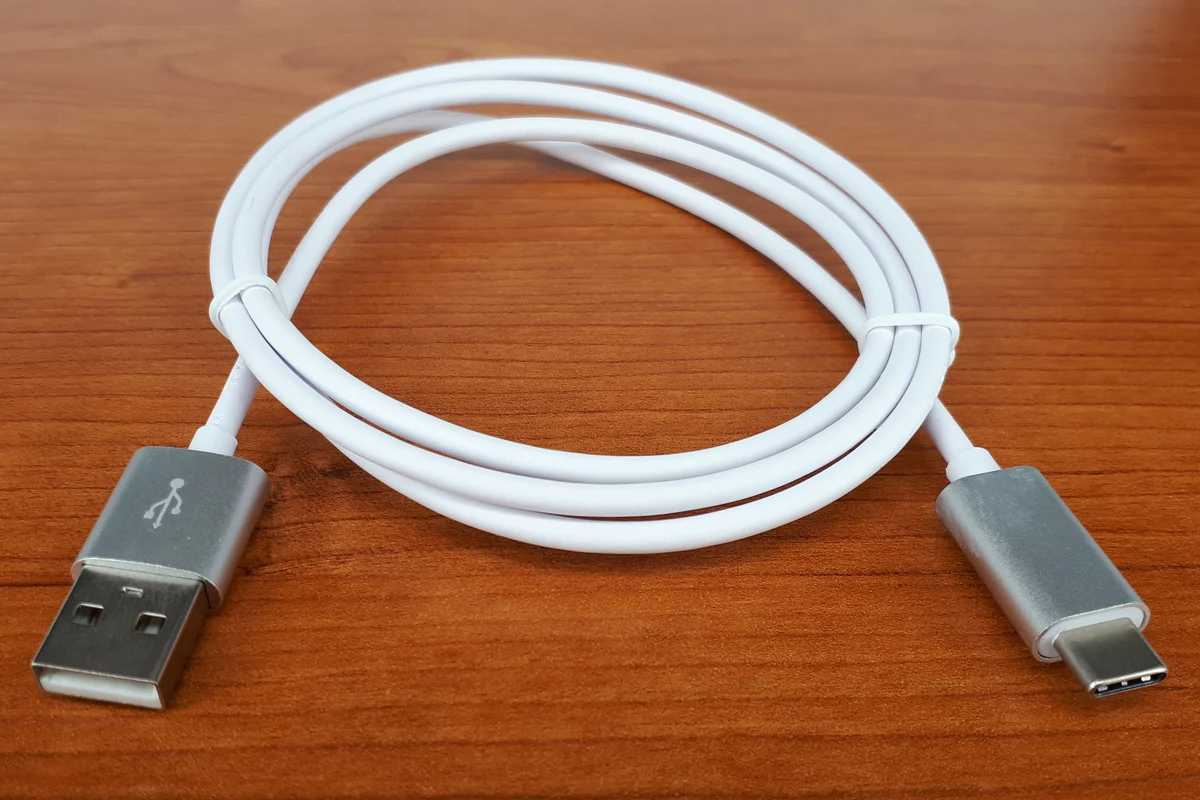
USB-C describes a connector you can recognize, but a familiar shape does not establish everything a cable can do. The cable used to charge a phone may be a poor choice for an external drive or a monitor. A working charging connection does not prove that the same setup supports video.
The useful change in shopping habits is to write down the job first. Look for charging power, data speed, and display compatibility as separate items. This is an explainer based on standards and manufacturer documentation, not a laboratory test of cables.
Read watts separately from data speed
The USB Implementers Forum's cable guidance explains that cables have different capabilities. Its USB-C-to-USB-C certification program uses 60W or 240W power markings. Except for USB 2.0 High-Speed cables, the program also requires supported data-rate markings.
That makes watts a useful answer to a power question. It does not answer the data question. A large wattage printed on a listing is not a promise of fast storage transfers. Conversely, a high data-rate claim needs a separate check of charging capability.
For a desk setup, write two lines: the power your laptop needs under its manufacturer's guidance and the data standard your peripheral supports. If you also need a display, add a third line. A product that only answers the first line leaves the rest of the purchase unresolved.
Understand the ceiling, not just the headline
The USB-IF's Power Delivery overview describes the 2021 USB PD 3.1 update enabling power delivery up to 240W. That is a standards capability, not a claim that every USB-C device, charger, or cable delivers that amount.
Think of the setup as several connected choices. The device, charger's supported output, cable, and any intervening dock must suit the task. Buying a cable with a larger power rating does not upgrade a device's charging requirements or turn an unsuitable charger into a different one.
Our buying rule is to match the documented requirement before paying for extra capability. A phone-only charging cable and a cable for a laptop dock may deserve different specifications. Keeping those roles distinct can be less confusing than buying every cable as though it must do every job.
Check the exact cable model
Apple provides a concrete illustration in its Thunderbolt 3 cable documentation. The described 0.8-meter cable supports Thunderbolt 3 transfers up to 40Gbps and up to 100W power. Apple contrasts it with its described 2-meter USB-C Charge Cable, which transfers data at up to 480Mbps and does not support video.
Those specifications belong to the named products. They do not describe all cables with either connector, or every later Apple cable. Check the exact model, length, and revision in a seller's listing against the manufacturer's page. A family name or photograph alone is not enough.
For an external drive, read the drive's interface specification and your computer port's specification alongside the cable's. The highest number on one item cannot establish the performance of the entire connection. Do not replace a drive just because a familiar-looking cable makes it feel slow.
Troubleshoot one link at a time
If charging works but a monitor does not, start with the computer's port documentation, the display's input requirements, and the cable's video support. Include adapters and docks in that list. A charging icon provides evidence about power, not a diagnosis of the display path.
Try a known working compatible cable and connection when available. Change one part at a time and record the result. Swapping the cable, dock, and port simultaneously may restore the connection without telling you which component mattered.
For multiport chargers, read the manufacturer's output table for the combination of ports you plan to use. Compare that configuration with the single-port rating rather than assuming the advertised maximum applies independently to every connected device.
Make the next purchase easier to identify
Keep the packaging or order details that state the cable's specifications. Mark cables by their intended job without covering connectors or damaging the jacket. A label such as laptop charging or monitor connection can be more useful at the desk than remembering the price.
Our checklist has five fields: connector at each end, supported power, supported data rate, any required display or Thunderbolt compatibility, and length. Match them with the manufacturer documentation and certification information where provided. Stop short of assuming that an unverified logo or ambitious marketplace title proves a claim.
The practical goal is a dependable connection for a named task. Higher specifications can be worthwhile when you need them, but a connector shape is not a substitute for reading the specifications.
Diagnose the missing function before buying another cable
Use this matrix with the manuals for the exact computer port, charger, dock, display, and cable. USB-IF explains that a certified cable still needs capabilities suited to the connected products. Certification does not add missing functions to a device.
| Symptom | First documented checks | One useful isolation step |
|---|---|---|
| Laptop charges, monitor stays blank | Host port video support, monitor input, cable video standard, and any dock requirements | Try a documented compatible direct connection, omitting the dock if the equipment supports it |
| Drive connects but transfer seems slow | Host-port interface, drive interface, cable data rating, and shared dock connections | Repeat the same file transfer with a known working compatible cable on the same port |
| Charging changes when another device is connected | Charger's simultaneous-port output table and dock power allocation | Compare the original device alone, then the intended two-device combination |
| An intermittent connection follows one cable | Cable model, connector condition, and device connection requirements | Substitute a known working compatible cable while retaining the same devices and port |
These steps narrow a fault; they do not prove which component is defective. If you find visible damage, stop using the damaged item rather than repeatedly reconnecting it. Follow the manufacturer's service guidance.
Keep a short connection log
Record the symptom, each exact model, the port used, cable length, intervening adapters, and the one change you made. For storage, use the same test file and note its size and destination. A transfer time includes more than cable bandwidth, so do not advertise the result as a cable's maximum speed. For video, record the requested resolution and refresh rate, not just that a picture appeared.
An example of a useful note is: “Same laptop port and monitor input; display absent with cable A, present with documented video-capable cable B.” An unhelpful note is “USB-C is broken.” The first gives the next purchase or support request a clear target.
Apple's named Thunderbolt 3 and USB-C charge cables illustrate why appearance is insufficient: their documented data and video capabilities differ. Do not generalize those specifications to every later cable. Likewise, USB Power Delivery's standards ceiling is not a promise that your charger, cable, and laptop negotiate that power together.
Buy the missing documented capability after isolation. If you are also replacing the computer, our 2024 M4 versus M4 Pro buying guide explains when their port differences matter. Keep the successful cable's model and intended job with your equipment notes.